

Manage your sent emails
After you’ve sent or scheduled your first email, your emails appear in the Emails Dashboard page. You can view email details, share a public version, view email logs, and more. You can also manage your scheduled and sent emails using Resend’s code tools including the MCP server, API endpoints and CLI commands for tasks such as listing, sending, updating, and canceling emails.View email details
See all the metadata associated with a sent or scheduled email, including the sender address, recipient address, subject, and more from the Emails Dashboard page. Select any email to view its details.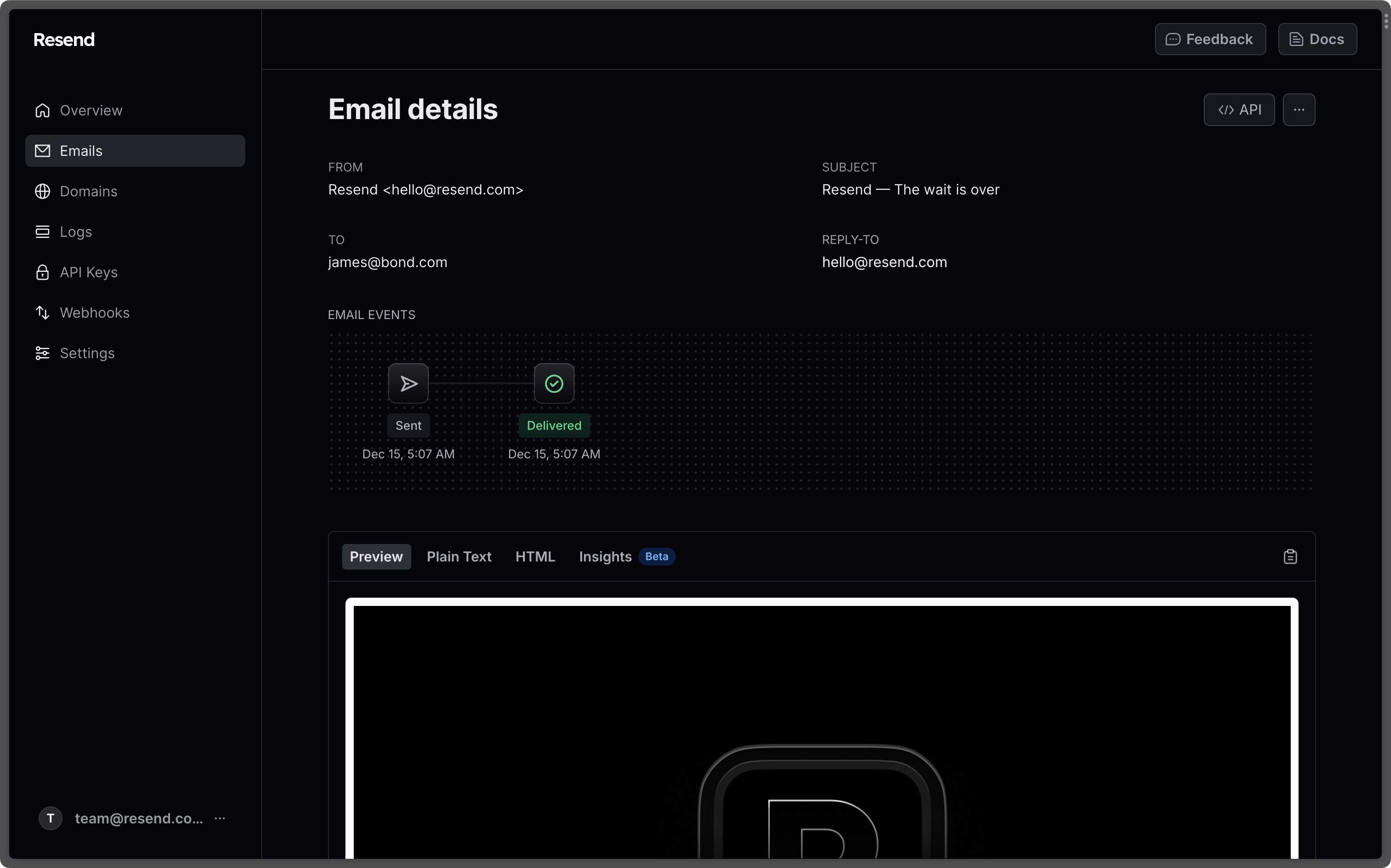
Understand email events
Here are all the events that can be associated with an email:bounced- The recipient’s mail server rejected the email. (Learn more about bounced emails)canceled- The scheduled email was canceled (by user).clicked- The recipient clicked on a link in the email.complained- The email was successfully delivered to the recipient’s mail server, but the recipient marked it as spam.delivered- Resend successfully delivered the email to the recipient’s mail server.delivery_delayed- The email couldn’t be delivered to the recipient’s mail server because a temporary issue occurred. Delivery delays can occur, for example, when the recipient’s inbox is full, or when the receiving email server experiences a transient issue.failed- The email failed to be sent.opened- The recipient opened the email. (Open rates are not always accurate)queued- The email created from Broadcasts or Batches is queued for delivery.scheduled- The email is scheduled for delivery.sent- The email was sent successfully.suppressed- The email was not sent because the recipient is on the suppression list. (Learn more about the suppression list)
Share email link
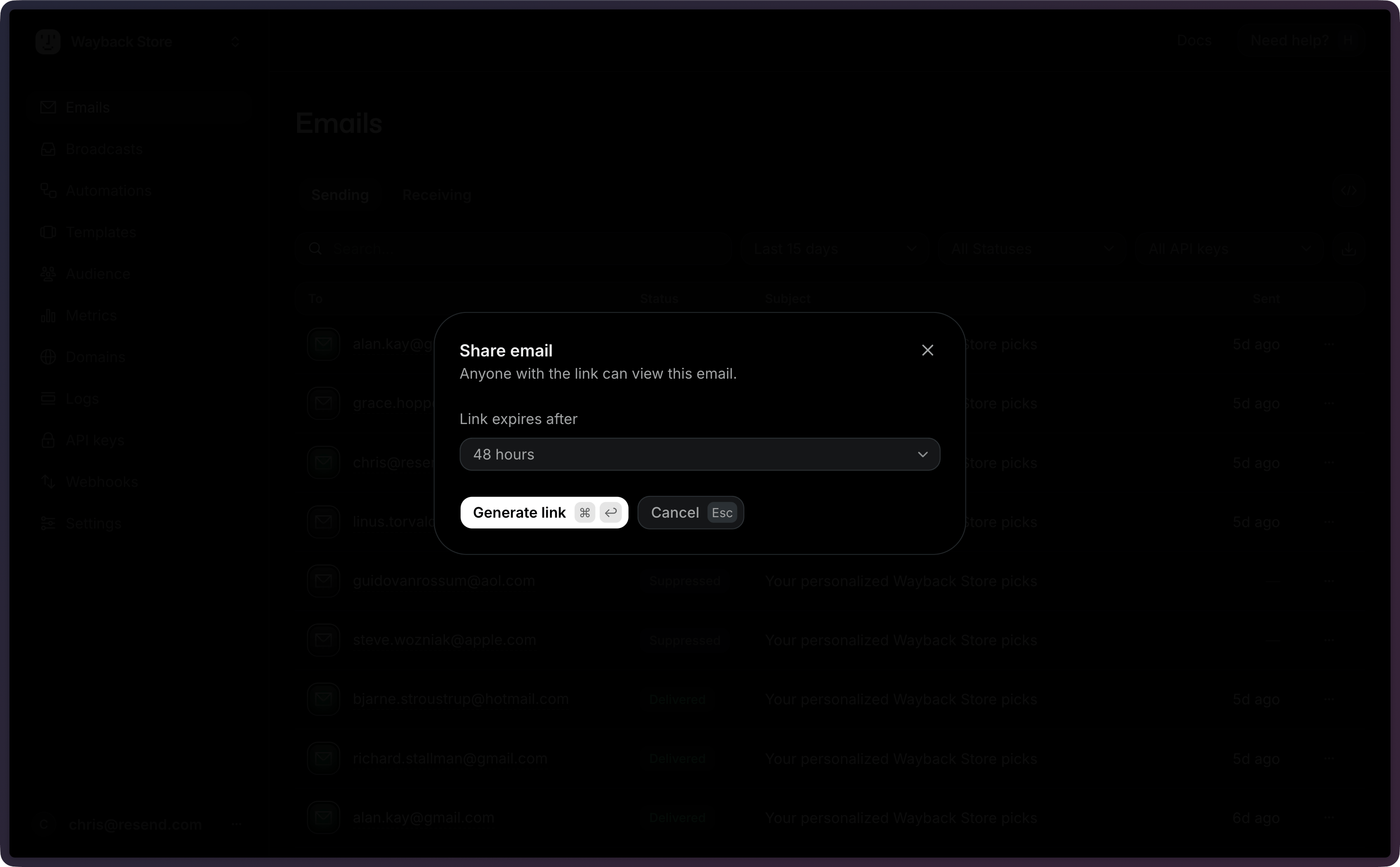
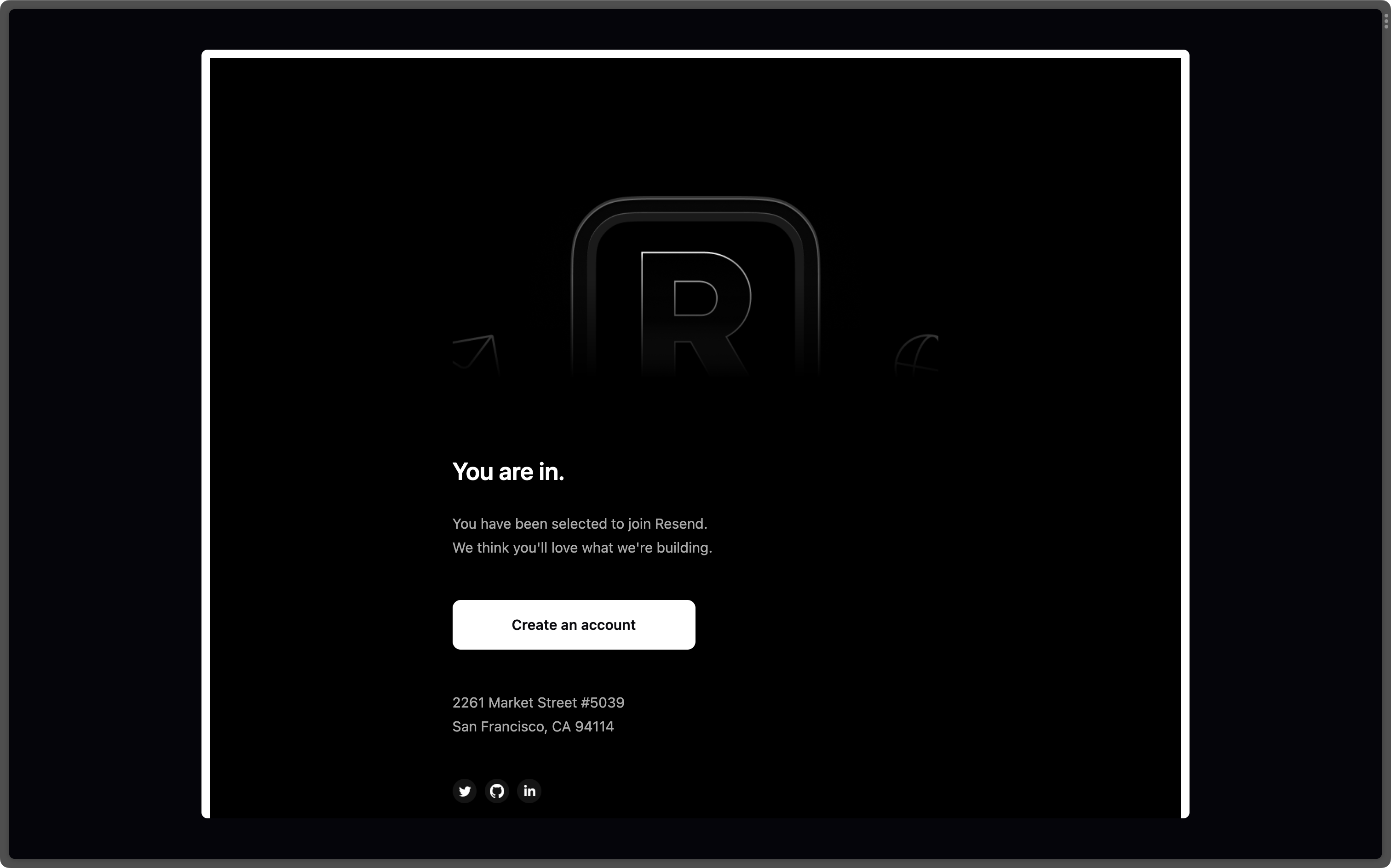
You can share a public link of a sent email, which is valid for 48 hours. Anyone with the link can view the email. To share a link, click on the dropdown menu , and select Share email.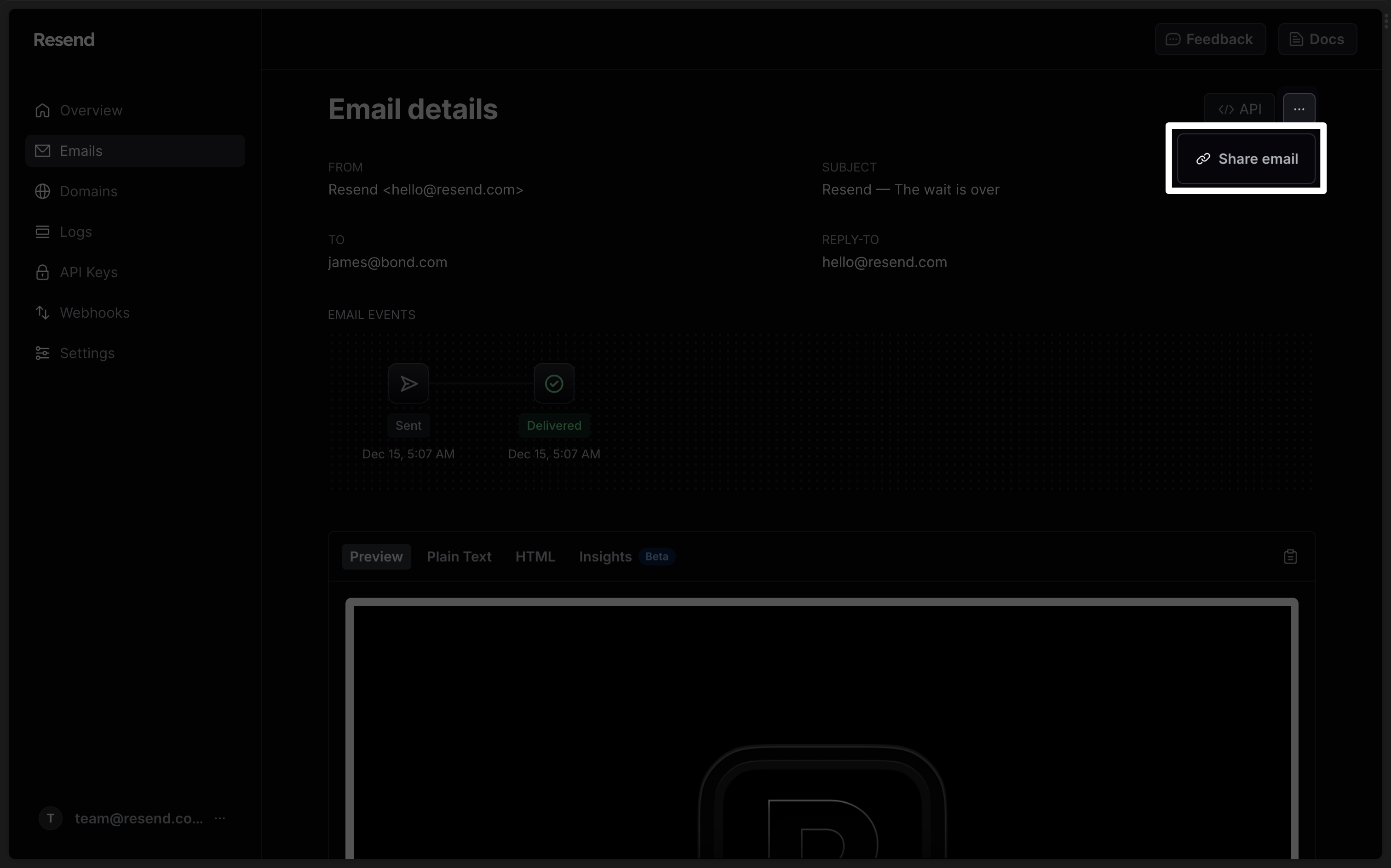
See associated logs
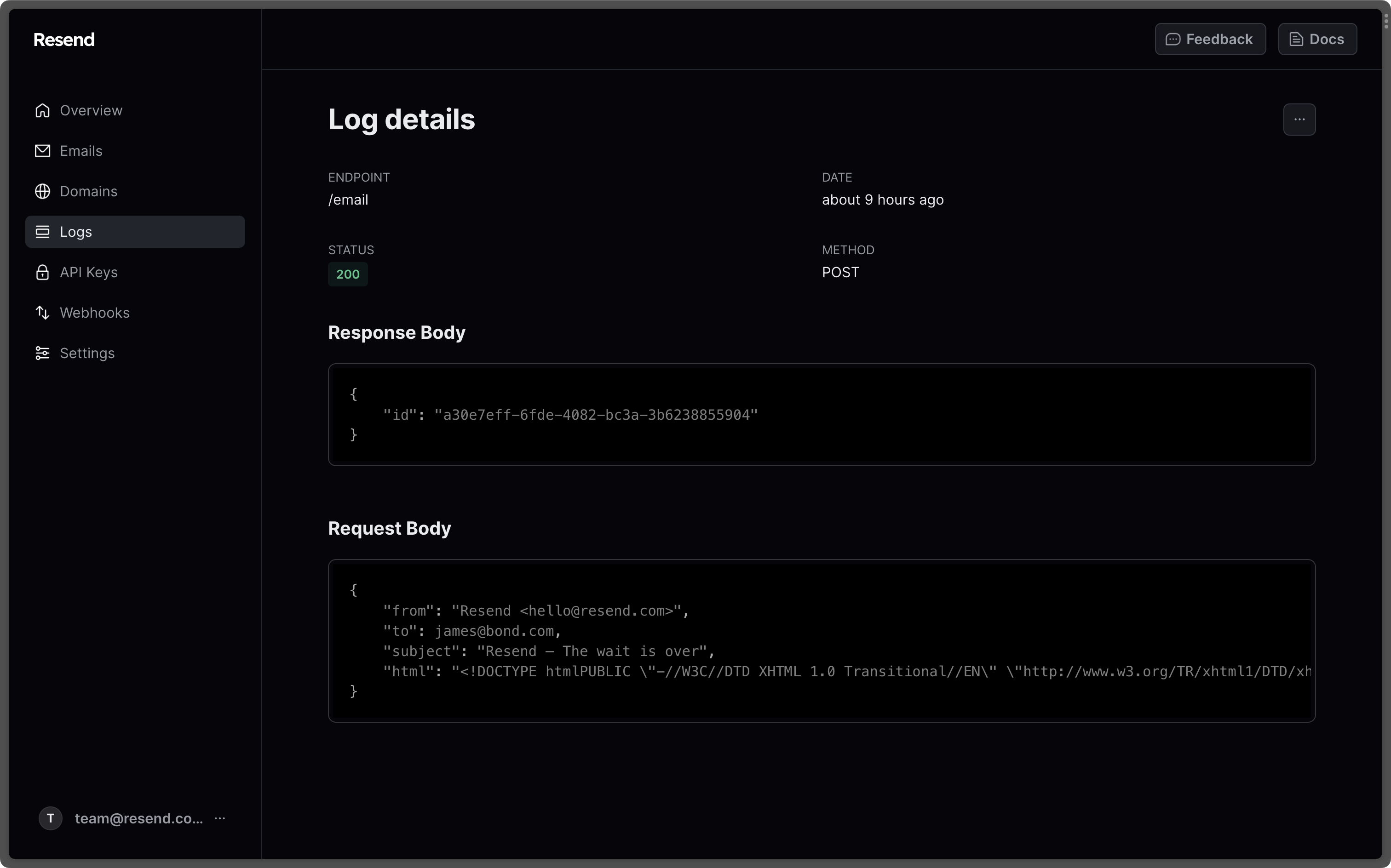
Check all the logs associated with an email to help you troubleshoot any issues with the request itself. To view the logs, click on the dropdown menu, and select “View log”.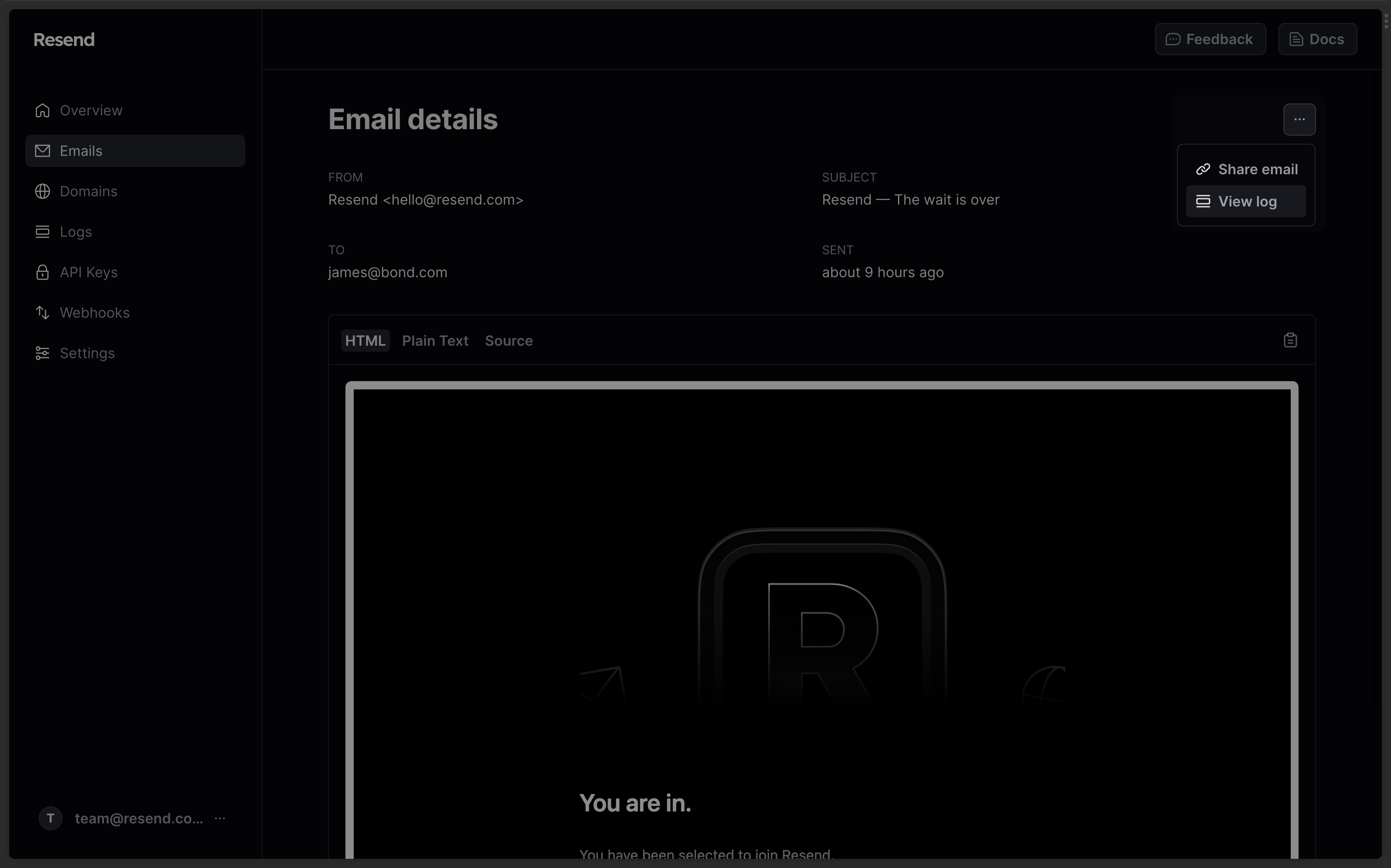
Export your data
Admins can download your data in CSV format for the following resources:- Emails
- Broadcasts
- Contacts
- Segments
- Domains
- Logs
- API keys
Currently, exports are limited to admin users of your team.
All exports your team creates are listed in the
Exports page under Settings > Team >
Exports. Select any export to view its details page. All members of your
team can view your exports, but only admins can download the data.